
A one-off certificate goes to anyone, with no user account and no course behind it: a guest speaker, a workshop attendee who never registered on your site, or a credential someone earned before your site existed. You type the person’s details, preview the PDF, and issue. Apart from having no account, it is a normal certificate: it has a credential ID and a QR code, it verifies on your verification page, it can be emailed, revoked, and reinstated, and it can get expiry reminders.
For people who do have an account on your site, keep using Issue Certificate on the Certificates screen, so the certificate appears in their My Certificates list. See Issuing Certificates Manually.
Opening the Form
There are two ways in:
- On Certificates > Templates, hover over a published template and click Issue one-off.
- In the designer, open the Award tab and click Issue One-Off in the One-off certificate section. The button is available once the template is published and saved.
Anyone who can issue certificates from a template can issue one-offs from it. With the School add-on, that includes organization members for their own organization’s templates.
Filling In the Form
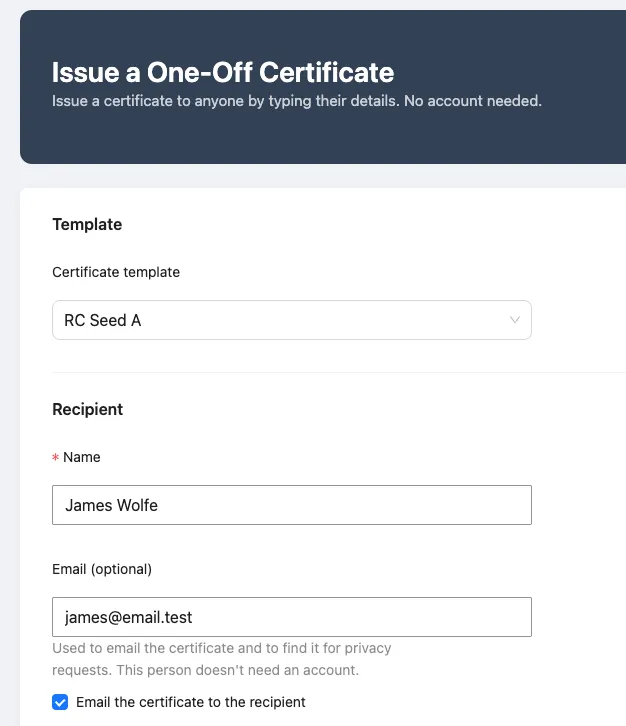
Template
The template you came from is already chosen. You can switch to any other published template you can issue from, and the rest of the form adjusts to that design.
Recipient
- Name (required): the name as it should appear on the certificate.
- First name and Last name: shown only when the design uses them. They fill in from the name as you type, and you can correct them, for example for a two-word surname.
- Email (optional): used to email the certificate and to find it later for privacy requests. The person does not need an account.
- Email the certificate to the recipient: turned on when you type an email address. If award emails are turned off under Settings > Email, the form says so.
Certificate Details
The form asks for exactly the fields the design uses and nothing else. If the design prints a course title, a score, or a custom profile field, you get a box for each. A field left empty prints empty. The issue date, credential ID, and site details fill in automatically, so they never appear here. A design that uses only the recipient’s name says so.
Dates
- Earned date: today by default, and it can be backdated for an achievement recorded after the fact. Any validity period counts from it.
- Expires (optional): leave it empty to follow the template’s validity setting, or pick a date for this certificate only.
Preview, Then Issue
Click Preview PDF to open the certificate with the details you typed, exactly as it will be issued. When it looks right, click Issue Certificate.
The confirmation shows the credential ID and whether the certificate was emailed, with buttons to View Certificate, Download PDF, and Copy Link to the certificate page. Issue Another clears the recipient but keeps the template, details, and dates, which makes a short run of similar certificates quick. Go to Certificates opens the Certificates screen.
Duplicates and Existing Accounts
Before issuing, the form checks two things and asks you to confirm when either applies:
- Already issued. A one-off certificate from this template already went to the same email address (or, with no email, the same name). The message gives the earlier date. Click Issue anyway to create a second certificate, or Cancel. Revoked certificates do not count.
- This email has an account. The address belongs to a user on your site. Issuing to the account instead is usually better, so the message links to Issue Certificate on the Certificates screen. You can still issue the one-off if that is what you intend.
After Issuing
On Certificates > Certificates, a one-off certificate shows the recipient’s name followed by “(no account)” and the source One-off, which you can also filter by. Search finds it by name or email. Revoke, Reinstate, Delete, and Download PDF work as for any certificate, and Resend email works when it has an email address. If the template sends expiry reminders, one-off certificates with an email address get them too. See Expiry Reminder Emails.
Two things differ from certificates held by an account. There is no My Certificates list to show it in, so the recipient keeps the email or the certificate link. And the certificate page has no Share button, because there is no signed-in account to confirm as its owner. The recipient can still copy the page’s link and share it.
Privacy Requests
WordPress’s Tools > Export Personal Data and Tools > Erase Personal Data find one-off certificates by the recipient’s email address, the same way they find certificates held by accounts. A one-off issued without an email address cannot be found that way, so record an email whenever you have one.