

Certificate Premium 2.1: Open Badges, Wallet Cards & More
The 2.1 releases of PressPrimer Certificate premium add-ons (Educator, School, and Enterprise) are available today. These are big releases with a lot of headline features.
Here’s what’s new.
Open Badges 3.0
Open Badges is an open standard for digital credentials. Badges are signed by the organization that issued them, and the badge confirms that it’s authentic and hasn’t been modified.
In Enterprise 2.1, every certificate can also be a signed Open Badges 3.0 credential. An Open Badge button appears on the certificate page, My Certificates, and in the Certificates list in /wp-admin/ when support is enabled. The links allow people to:
- Download the badge file.
- Download a badge image with the badge inside it.
- Copy the badge link to add it to a digital wallet.
Badges mean learner credentials aren’t tied to your website. Learners can carry them to other platforms and wallets that support Open Badges.

Important: Open Badges need PHP 8.2 or later. Everything else in the PressPrimer Certificate plugins works on PHP 7.4 and up.
Wallet cards
Some credentials need to fit in a wallet, like those for first aid training, safety, or memberships. With the Certificate Educator update, certificate templates can now include a wallet card, sized to credit card or business card sizes. Each wallet card has a front and optional back, and they’re designed in the normal certificate designer.
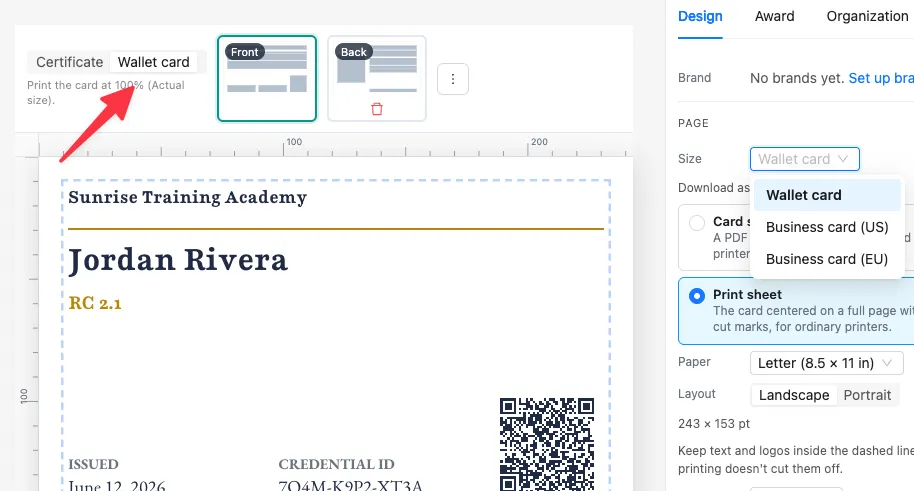
Wallet cards can be downloaded from the certificate page, My Certificates, and the Certificates list in /wp-admin/.
One-Off certificates for anyone
Not every certificate comes from a WordPress trigger for someone with an account. You might run a live workshop, present at a conference, or want to recognize someone. These people might not have accounts on your site.
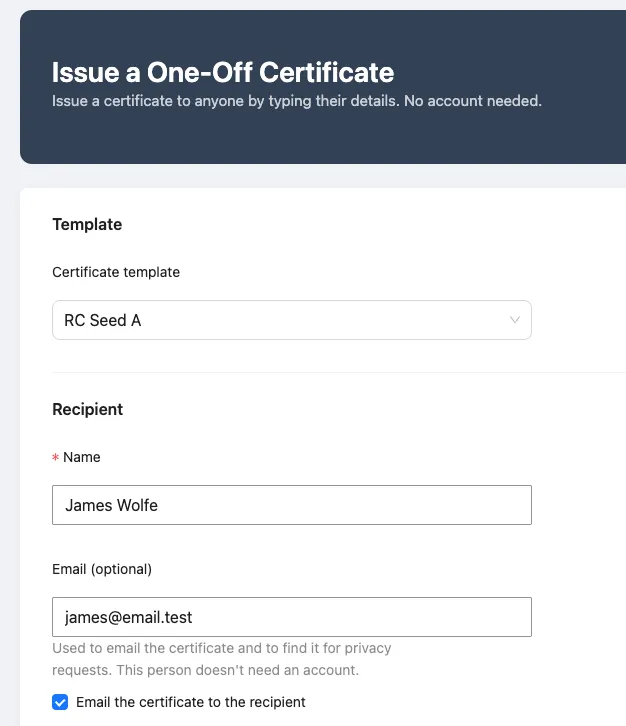
The new Issue One-Off tool handles those situations. Open it from the Templates list or a template’s Award tab in the designer, then enter a person’s name, email, and any other details, and you can generate the required certificate instantly. Every certificate works just like any other, with its own credential ID and verification page.
Brand kits
If you issue certificates for more than one brand, program, or client, keeping colors, logos, fonts, and other elements consistent is hard. The new Brand Kit tool under Certificates > Settings > Appearance (at the bottom of the page) holds up to 10 brands, each with its own colors, fonts, and logos.
Inside the certificate designer, Replace colors takes it a step further. It recolors every page of a design from the brand’s colors in one step. If you don’t like the changes, the undo tool reverses it.

On sites with several issuing organizations in the School add-on, administrators can assign brands to an organization. Its templates then offer only those brands in the designer.
Email templates
Until now, every certificate on your site sent the same award email. That wasn’t ideal if you supported multiple brands, programs, or clients.
In Educator 2.1, visit Certificates > Email Templates to manage as many named award and expiry reminder templates as you need. Once they’ve been set up with their own branding and text, you can choose which email templates to use from the Award tab inside the certificate designer.
On sites with several issuing organizations from the School plugin, administrators can choose which email templates every organization is allowed to use.
Custom credential ID formats
In the School plugin, issuing organizations can now use custom ID formats for their credentials. This is what it looks like:

Once the ID format has been configured, every certificate template linked to an organization can use its format from the Organization tab. If you’re importing records, the Bulk Award import tool now supports a Credential ID column that allows you to use your own credential IDs. The preview tool flags IDs that are invalid, repeated, or already in use.
Custom page sizes
PressPrimer Certificate 2.1 (the free plugin) added support for A3 and Legal paper sizes, and the Educator 2.1 release includes support for paper of any size. Choose Size > Custom size in the designer, and you can set any width and height from 1 inch to 24 inches.
Better award past completions
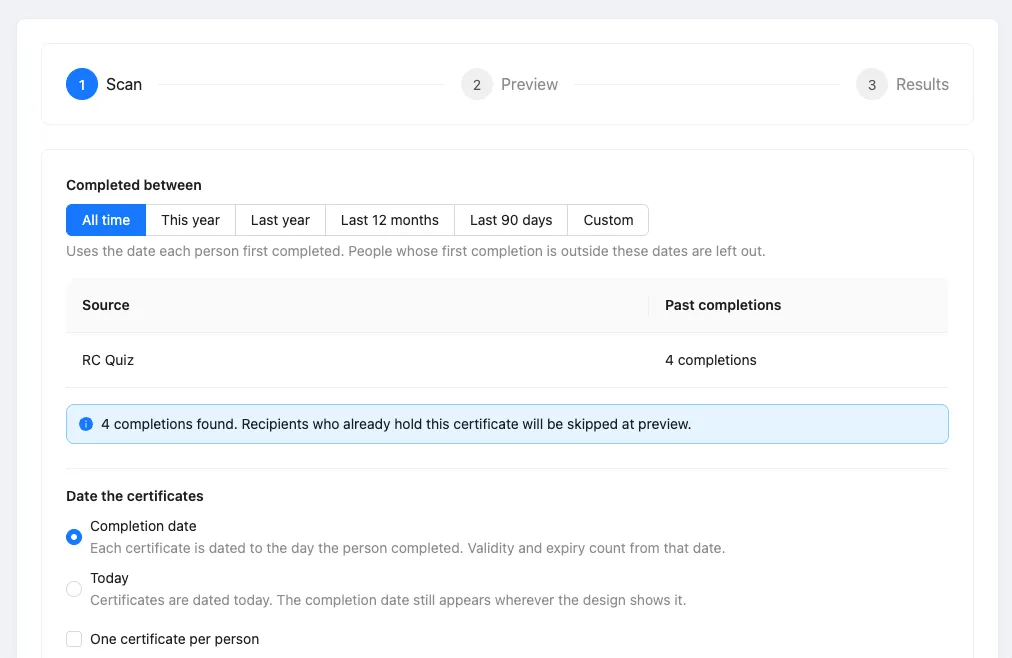
The Award Past Completions tool now supports additional filters and controls over each run, so you can:
- Award only completions within a date range.
- Date certificates to when the user completed the requirements.
- Turn off expiry reminder emails.
- See each person’s expiry before you run it, with an option to skip users who would be issued an expired certificate.
More improvements
There are a lot of fixes and quality-of-life improvements in the release too, including:
- Organization owners can revoke, reinstate, resend, and delete their organization’s certificates in bulk from the Certificates list.
- Organizations can choose the order of programs on their public profile (by name or by date added) and group programs under headings.
- If your site’s scheduled tasks don’t run reliably, Bulk Award and Award Past Completions offer Process in This Tab to finish the work from the open page.
Updating
All three PressPrimer Certificate add-on updates are available now. Note that all three need the free plugin to be updated to 2.1, so update that first and then the premium add-ons.
Not sure which add-on you need? The pricing page compares all three.
Let us know in the comments how you’re using the new 2.1 features!
See PressPrimer plugins in action. Launch a live demo


